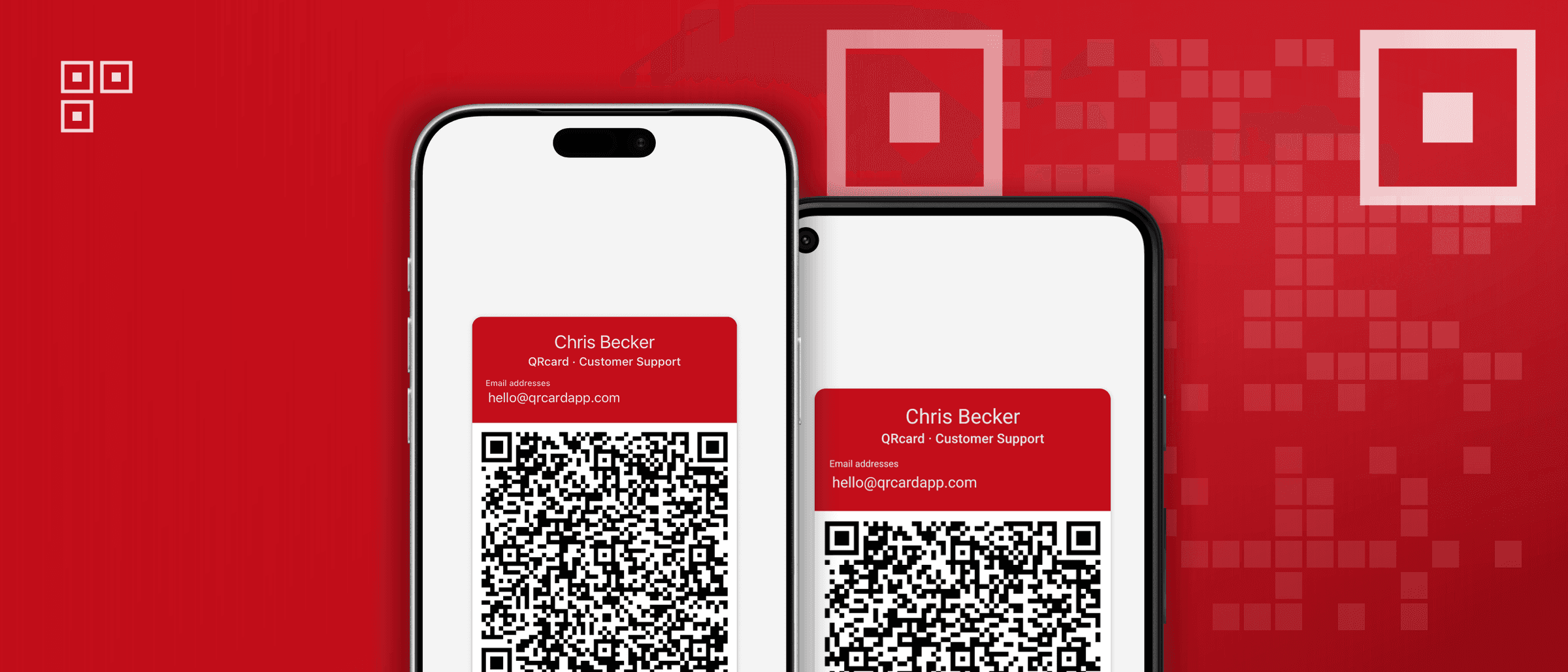
Navigation Update in Version 1.14
QRcard 1.14 brings a new navigation with native controls on iOS and Android. Here is what changed.
QRcard 1.14 refreshes how you get around the app. Navigation, settings and card actions now use the native controls of iOS and Android. Here is an overview of what changed. For all the details, read Navigation: The Basics.
You may need to update QRcard to see these changes.
Your cards in one place
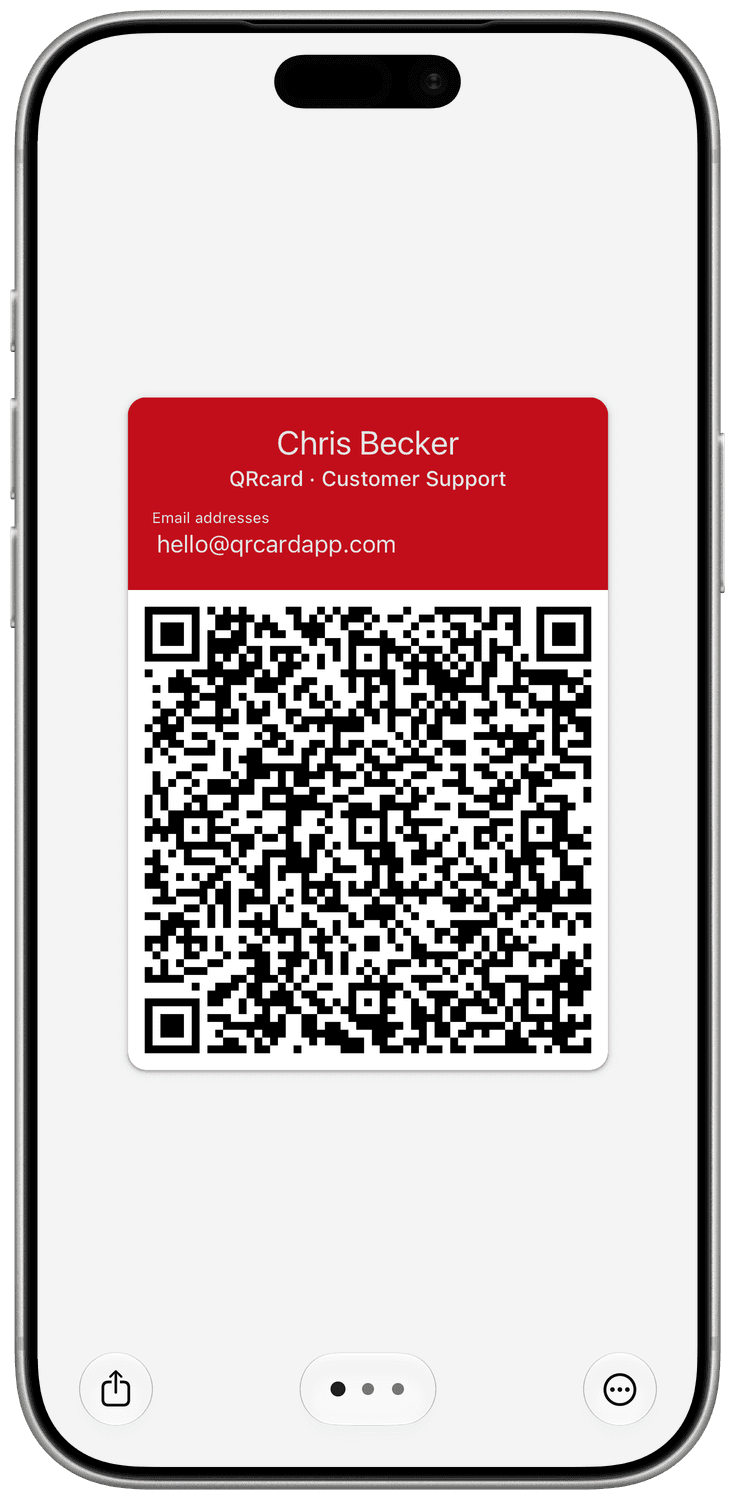
- Page dots: Tap a dot below your card to jump straight to it, or keep swiping.
- Share button: Sharing your card is now one tap away in the bottom left corner.
- Menu: Editing the card, Manage cards and Settings moved into the menu in the bottom right corner.
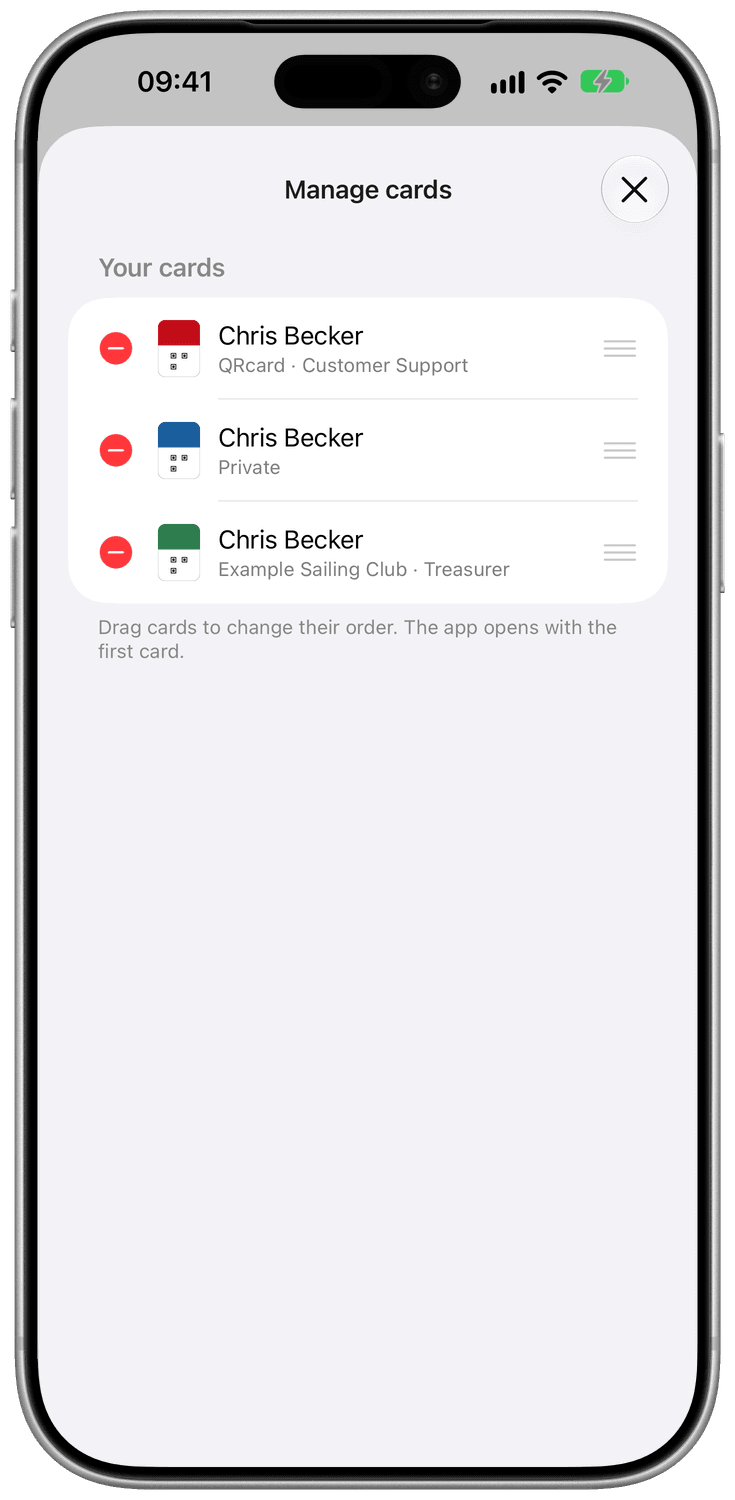
Manage cards
The new Manage cards screen lets you reorder and delete your cards. A deleted card keeps its slot, so you can create a new one in its place.
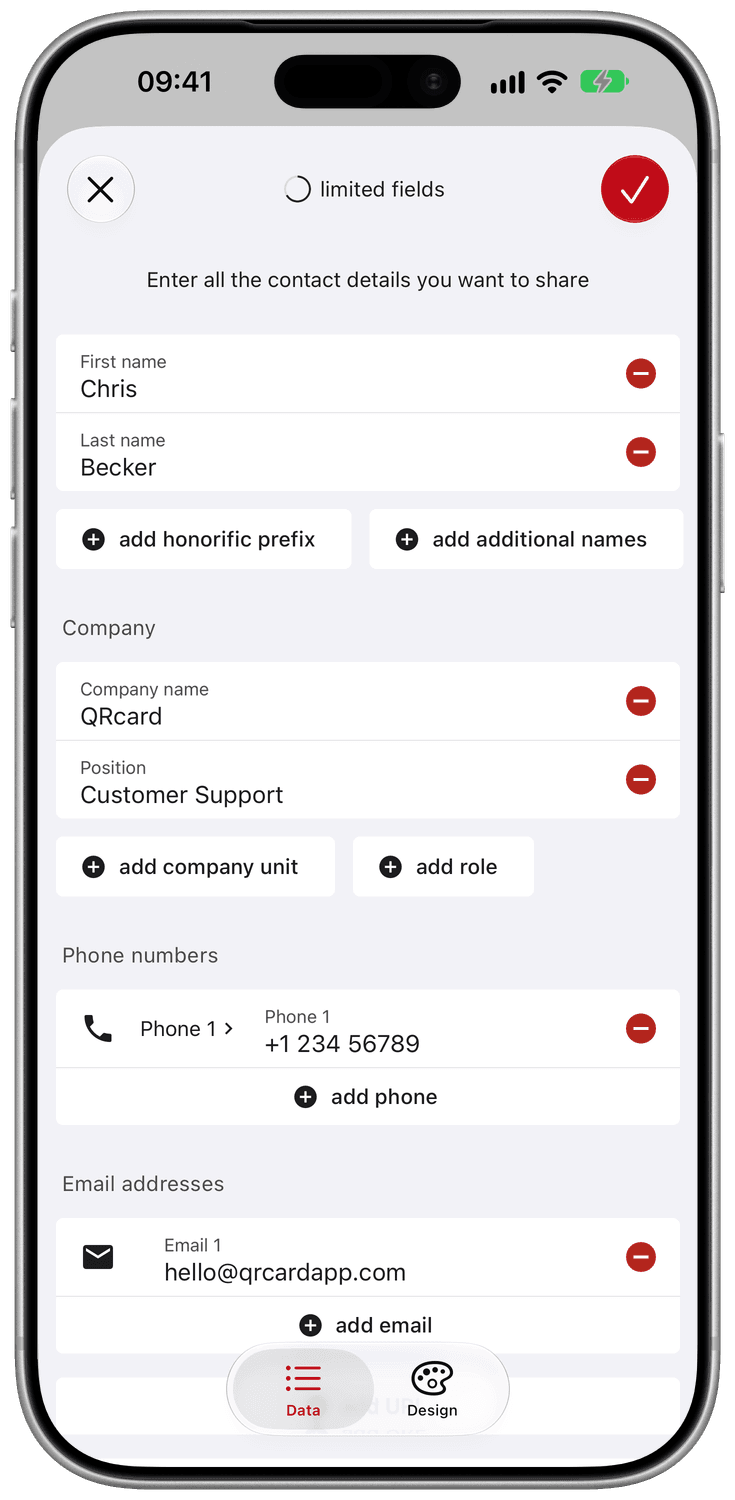
A safer card form
- Switch between Data and Design with the tabs at the bottom (a floating toolbar on Android).
- QRcard asks before it discards unsaved changes.
- On iOS you can swipe the form down to close it.
Colors that fit your phone
On Android, the app now uses Material 3 and can pick up the colors of your device.
Questions or feedback? Write to us at hello@qrcardapp.com.