Navigation: The Basics
How to find your way around the QRcard app
QRcard now uses the navigation controls of your phone, so it feels at home on iOS and Android. Everything is where you expect it, and a few things got easier.
Available from 1.14.0: The new navigation with the share button and menu, Manage cards and swiping the form down on iOS need QRcard 1.14.0 or newer. Update the app to use them.
Your cards
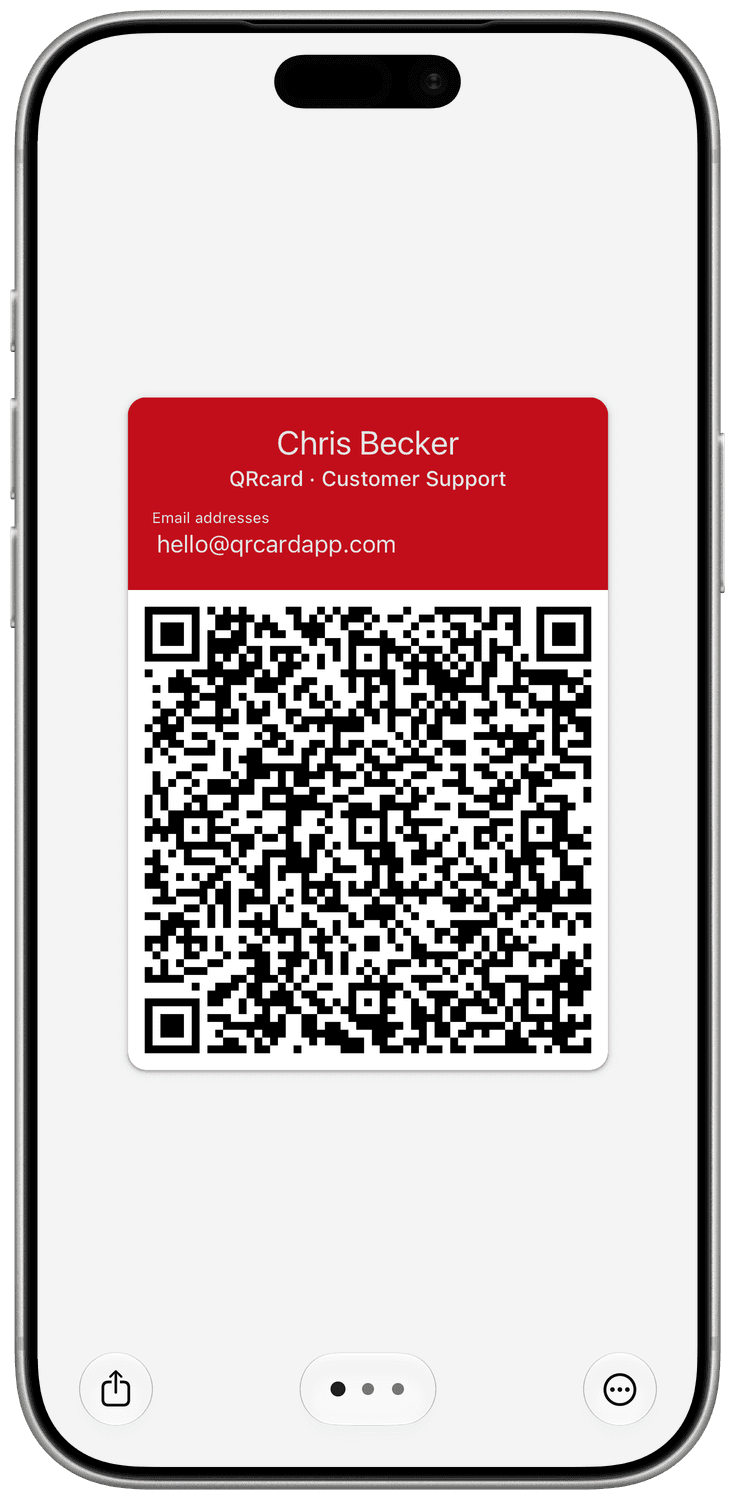
- Swipe left or right to switch between your cards, or tap one of the dots at the bottom to jump to a card.
- Tap a card to edit it.
- Share: The button in the bottom left corner shares your card as a vCard or QR code, and lets you add it to your home or lock screen.
- More options: The button in the bottom right corner opens the menu with Edit, Manage cards and Settings.
Edit a card
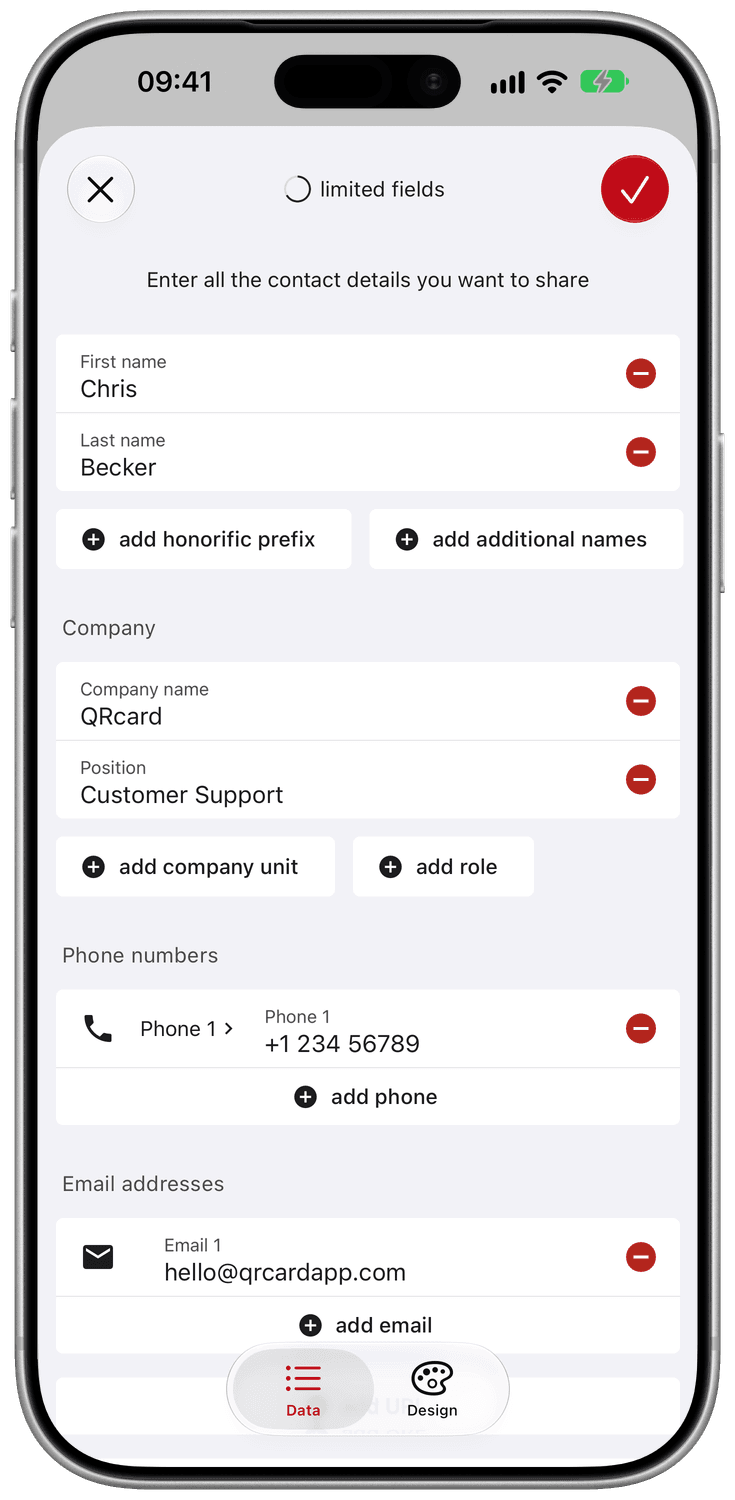
- Switch between Data and Design with the tabs at the bottom.
- Tap the check mark to save your changes, or the close button to leave the form.
- If you have unsaved changes, QRcard asks before it discards them. On iOS you can also swipe the form down to close it.
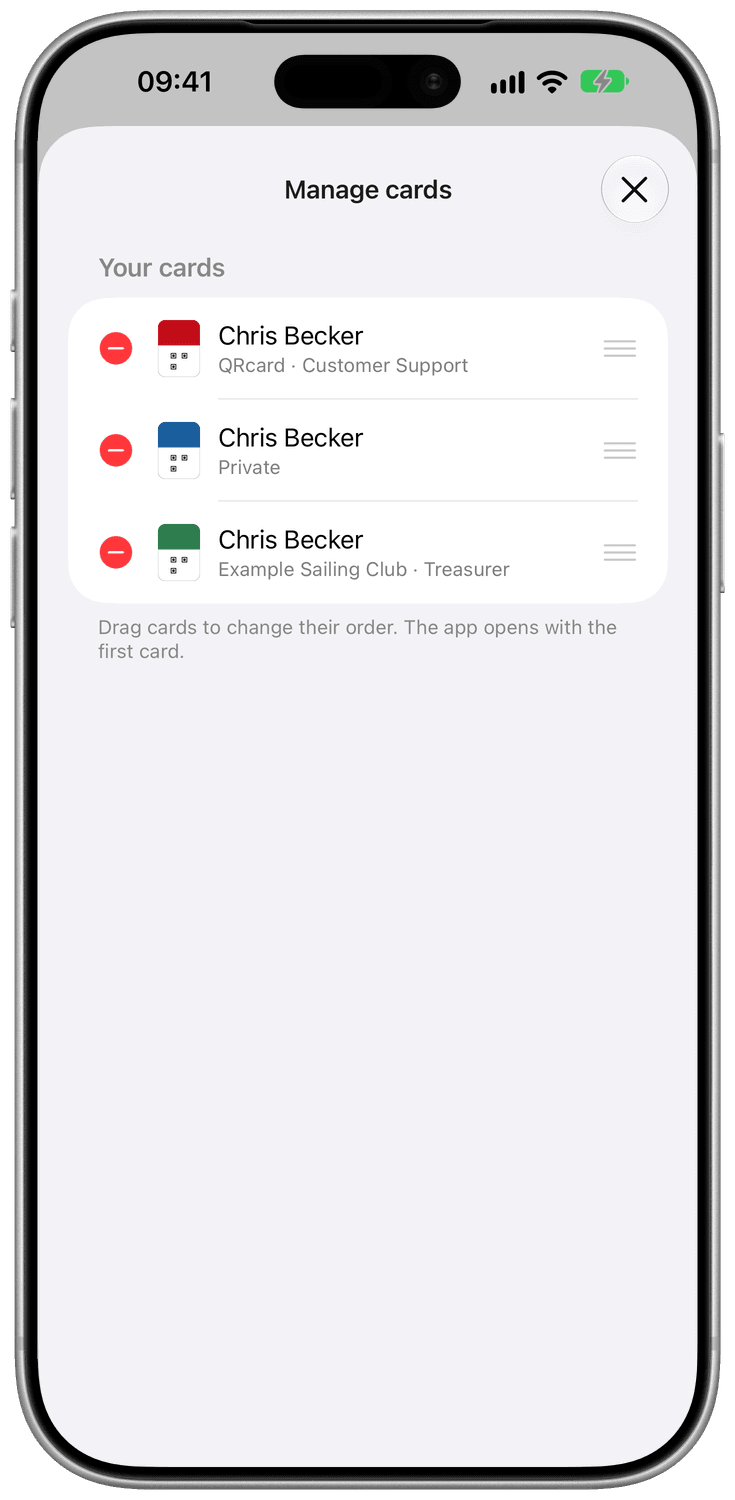
Manage cards
Open Manage cards from the menu to change the order of your cards or delete cards you no longer need. A deleted card keeps its place free for a new card.
Settings
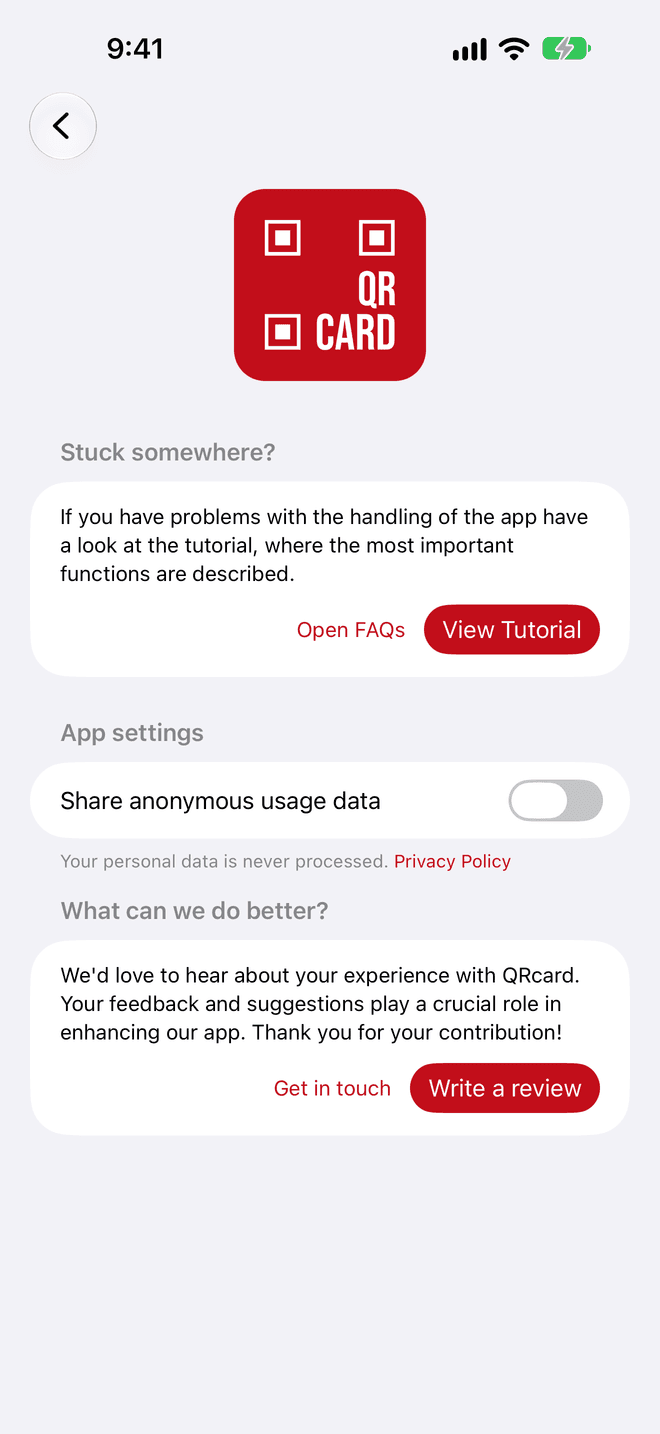
Open Settings from the menu in the bottom right corner. It is divided into sections:
- Stuck somewhere? Open FAQs shows the frequently asked questions, View Tutorial opens the tutorial.
- In-App purchases: Get QRcard Premium to add as many fields as you like and remove ads, or buy an additional card. Restore purchases brings back purchases you made earlier, for example on a new device. In-App purchases are not available in the premium version of QRcard. Install the regular QRcard app to buy additional cards.
- App settings: On Android 12 and later, App colors lets you choose between Neutral (red accents on gray backgrounds), Warm (red accents on warm backgrounds) and Device (your device's Material You colors), available from 1.14.0. Share anonymous usage data turns anonymous usage statistics on or off. Your personal data is never processed.
- What can we do better? Get in touch writes an email to us, Write a review opens the app's store page.